Business Data Backup: How to Follow the 3-2-1 Rule Properly
Three copies, two media, one offsite, plus one immutable copy and tested restores. A practical backup plan for small businesses.
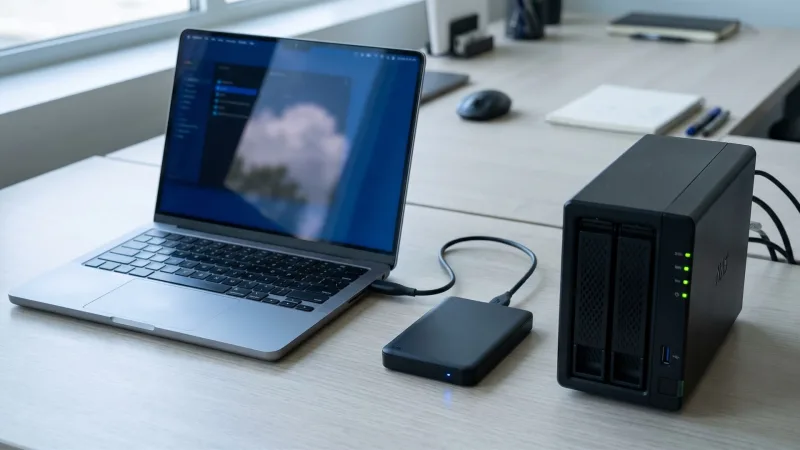
The short answer: Good business data backup follows the 3-2-1 rule: keep three copies of your data, on two different types of storage, with one copy offsite. Many experts now add a fourth element, often called 3-2-1-1-0: one copy offline or immutable so ransomware cannot change it, and zero errors after testing restores. Back up computers, servers, cloud apps such as Microsoft 365 and Google Workspace, and your website, then test recovery regularly.
Why business data backup matters
Data can be lost through hardware failure, theft, accidental deletion, software bugs, fire, flood or ransomware. For a small business, losing customer records, invoices or project files can mean days of lost work, missed deadlines and damaged trust. A tested backup turns a disaster into an inconvenience.
Why it matters: ransomware gangs now try to find and destroy backups before encrypting systems. Backups that are offline or immutable are what let businesses recover without paying. Read more in ransomware protection for small business.
The 3-2-1 rule explained
| Rule | Meaning | Example |
|---|---|---|
| 3 copies | The original plus two backups | Files on laptops, a local backup and a cloud backup |
| 2 media types | Different storage so one failure does not destroy all copies | A NAS device and a cloud backup service |
| 1 offsite | At least one copy in another location | Cloud backup or a drive kept at another site |
| +1 immutable or offline | A copy that cannot be changed or deleted for a set period | Cloud backup with immutability or an air-gapped drive |
| 0 errors | Restores are tested and verified | Quarterly restore tests |
Step 1: List what needs backing up
- Laptops and desktops: documents, desktop files and local app data.
- Servers and NAS devices: shared files, databases and line-of-business apps.
- Cloud office suites: email, OneDrive, SharePoint, Google Drive and Teams or Chat data. Providers protect their infrastructure, but under the shared responsibility model your data is largely your responsibility.
- Business apps: accounting, CRM and ecommerce platforms; check each one's export and backup options.
- Websites: files and databases, especially for self-hosted sites; see small business web hosting.
- Configurations: firewall, router and key system settings.
Step 2: Set your recovery targets
Two simple questions shape your backup plan:
- Recovery point objective (RPO): how much data can you afford to lose? If the answer is "one day", back up at least daily.
- Recovery time objective (RTO): how quickly must systems be working again? If it is "four hours", you need fast local restores, not just a slow cloud download.
Set targets for each system. Email and accounting may need tighter targets than archived project files.
Step 3: Choose backup tools
| Option | Best for | Notes |
|---|---|---|
| Cloud backup service for endpoints | Laptops and remote workers | Automatic, offsite, often with versioning |
| NAS device with backup software | Fast local restores in the office | Combine with cloud replication for offsite |
| Microsoft 365 or Google Workspace backup | Email and cloud files | Third-party tools or the providers' own backup add-ons |
| Image-based server backup | Restoring whole servers quickly | Captures operating system and apps |
| External drives rotated offsite | Very small businesses | Cheap but relies on people remembering |
Look for encryption in transit and at rest, versioning, immutability or object lock, alerting on failures and easy restores.
Step 4: Make backups immutable or offline
Immutable storage prevents anyone, including an attacker with your passwords, from deleting or altering backups for a set retention period. Many cloud backup services and storage providers offer this as "object lock" or "immutable backups". Alternatively, keep one copy on drives that are disconnected after each backup. Protect backup admin accounts with separate credentials and two-factor sign-in.
Step 5: Set schedules and retention
- Back up critical data at least daily; many tools run continuously.
- Keep daily versions for a few weeks, weekly for a few months and monthly for a year or more.
- Follow legal retention rules for financial and employee records.
- Delete data you no longer need, which reduces risk and cost and helps with privacy laws; see GDPR for small business.
Step 6: Test restores regularly
- Every month, restore a few random files and check they open.
- Every quarter, restore a full mailbox or folder and a complete laptop or server image.
- Time each restore and compare it with your RTO.
- Write down the steps so someone else can restore if the usual person is unavailable.
Yes, but: many businesses only discover their backups were failing when they need them. Turn on failure alerts and check backup reports weekly.
Step 7: Write a simple recovery plan
Document what to restore first, who does it, where backup credentials are stored securely offline, and how to contact your IT provider and backup vendor. Include a contact list for staff and key customers. Keep a printed copy, because your systems may be down when you need it. Our small business cybersecurity checklist includes an incident plan template.
Sync vs backup
| Sync (Drive, OneDrive, Dropbox) | Backup | |
|---|---|---|
| Purpose | Access the same files everywhere | Recover from loss or damage |
| Deletions | Copied to all devices | Previous versions kept |
| Ransomware | Encrypted files can sync | Clean, isolated copies available |
| Retention | Limited version history | Policy you control |
Use both: sync for daily work, backup for protection. See cloud storage for business for choosing a sync service.
Example setup for a 10-person office
- Cloud backup agent on every laptop, running continuously.
- Third-party backup of Microsoft 365 or Google Workspace, with immutability.
- NAS in the office for fast restores of shared files, replicated nightly to cloud storage with object lock.
- Website backed up daily by the host and weekly to separate storage.
- Monthly file restore test and quarterly full restore test.
Common mistakes
- Relying only on sync or a single external drive.
- Backing up to a drive that stays plugged in, so ransomware encrypts it too.
- Forgetting cloud email and SaaS apps.
- No alerts, so failed backups go unnoticed.
- Never testing a restore.
Backing up laptops for remote and hybrid staff
Remote workers rarely connect to the office network, so office-based backups miss their laptops. Use a cloud backup agent that runs over any internet connection, reports status centrally and protects the folders where people actually save files. Combine it with your office suite's folder redirection, such as OneDrive Known Folder Move, so documents and desktops are also synced. Our guide to managing remote teams covers other remote security habits.
Budgeting for backup
Backup costs depend on how much data you protect, how long you keep it and how many devices and users you cover. Endpoint and Microsoft 365 or Google Workspace backup is usually priced per user or device each month; server and NAS backup is often priced by storage volume. Compare those costs with the price of a single day of lost work across your whole team, and backup usually looks inexpensive.
Backup checklist
- All laptops, desktops and servers covered
- Cloud email and files backed up separately from the provider
- At least one offsite and one immutable or offline copy
- Daily or continuous schedules for critical data
- Retention policy documented and compliant with law
- Failure alerts reaching a monitored inbox
- Monthly file restore and quarterly full restore tests
- Recovery plan printed and stored securely
The bottom line: Business data backup is simple insurance: follow the 3-2-1 rule, add an immutable or offline copy, cover laptops, servers and cloud apps, and test restores regularly. When something goes wrong, a tested backup is the difference between a bad day and a business crisis.
Frequently asked questions
Is cloud backup enough on its own?
It covers the offsite copy, but a local copy speeds up restores. Combining local and cloud backup follows the 3-2-1 rule.
Does Microsoft 365 back up my data?
Microsoft keeps its service resilient and offers retention features, but those are not a full backup under your control. Many businesses add a third-party or Microsoft's own backup service.
How often should a small business back up?
At least daily for important data, and continuously for laptops where possible.
How long should I keep backups?
Long enough to recover from problems discovered late, often several months to a year, and longer where laws require records to be kept.
What is an immutable backup?
A backup that cannot be modified or deleted for a set retention period, even by an administrator. It protects against ransomware and attackers who steal admin passwords.
Should backups be encrypted?
Yes, both in transit and at rest. Store the encryption keys securely and separately, because losing them means losing access to your backups.
What is the difference between RPO and RTO?
RPO is how much recent data you can afford to lose, measured in time. RTO is how quickly a system must be working again after a failure.
Can I back up to an external hard drive?
Yes, as one layer. External drives are cheap and fast, but should be disconnected after each backup and rotated offsite, and combined with a cloud backup to meet the 3-2-1 rule.
Who should be responsible for backups?
Name one person, often the owner or an IT provider, to check backup reports weekly, run restore tests and update the recovery plan. Shared responsibility often means nobody checks.
Sources
Spotted an error? Email info@nodelyf.com. See our corrections policy.